> For the complete documentation index, see [llms.txt](https://dev.pointr.tech/llms.txt). Markdown versions of documentation pages are available by appending `.md` to page URLs; this page is available as [Markdown](https://dev.pointr.tech/features/geofencing.md).

# Geofencing

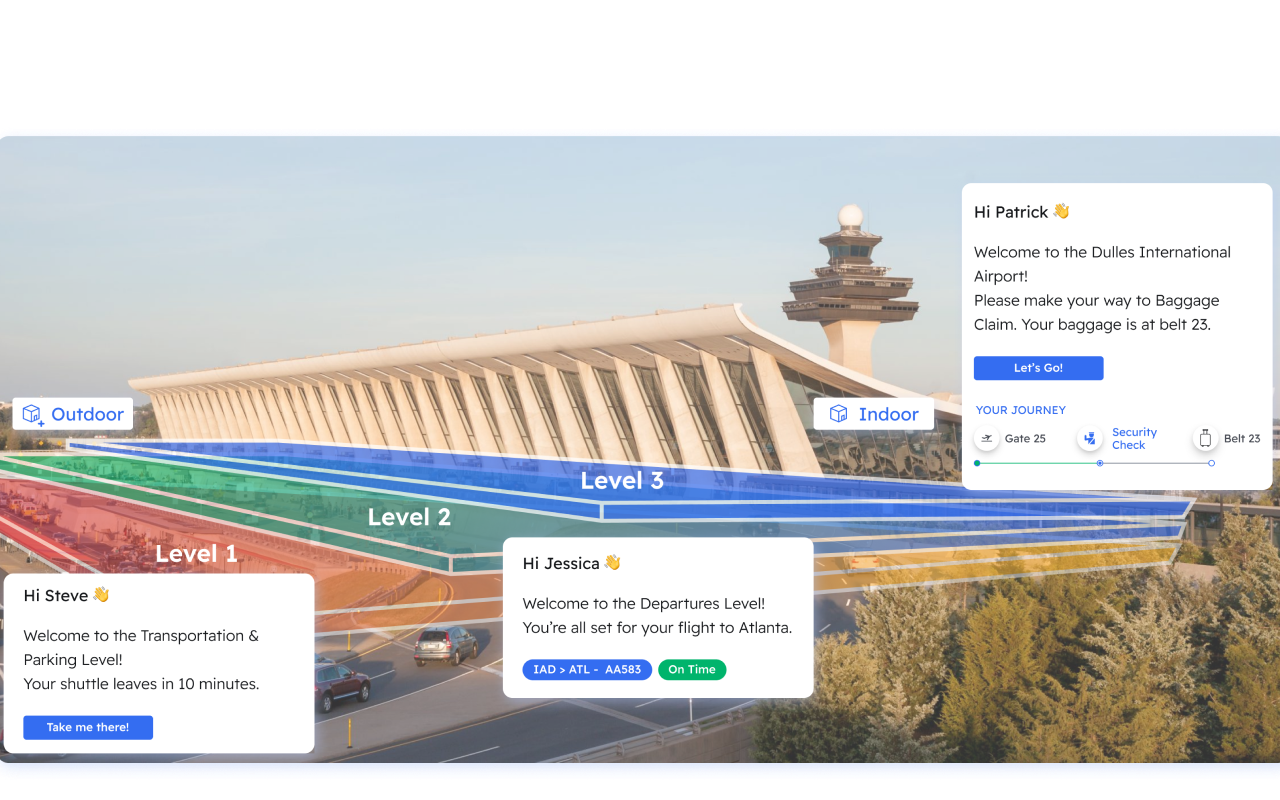
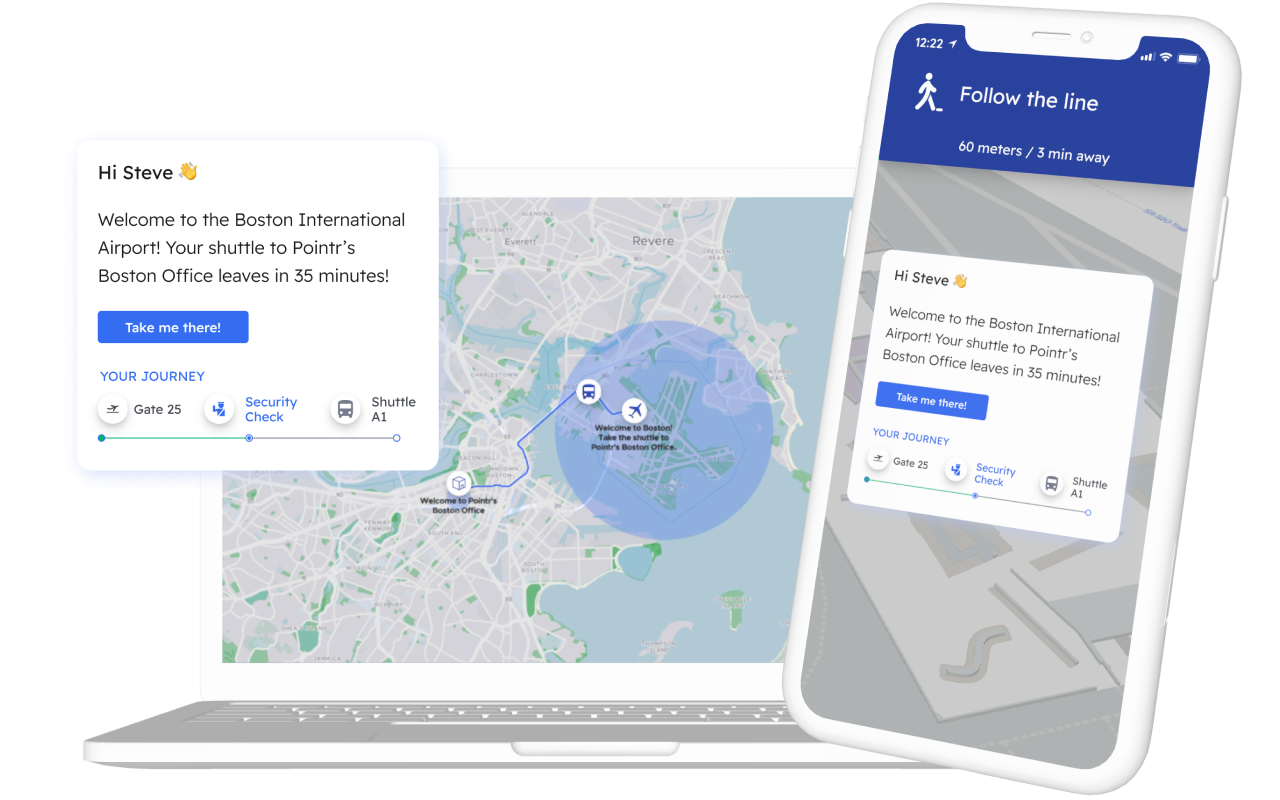
Trigger in-app actions when users enter or exit zones using beacon-based or GPS-based geofences.

Geofences are virtual boundaries that trigger events when a user enters or exits them. They’re commonly used to:

* Send in-app proximity notifications
* Deliver targeted messages or emails
* Trigger alerts (e.g., to staff during emergencies)

Pointr Mobile SDK supports two types of Geofences: **Beacon Geofences** and **GPS Geofences**. These can be [set up and configured in the Pointr Cloud Dashboard](https://dev.pointr.tech/features/geofencing/managing-geofences.md).

<table data-full-width="false"><thead><tr><th align="center">Beacon Geofencing</th><th width="369" align="center">GPS Geofencing</th></tr></thead><tbody><tr><td align="center"><img src="https://content.gitbook.com/content/X0ubTdDuDEByHfWtKKVg/blobs/JVrT4wAC2xAfCMTR3U6B/beacon-geofence.png" alt="" data-size="original"></td><td align="center"><img src="https://content.gitbook.com/content/X0ubTdDuDEByHfWtKKVg/blobs/7aKKYDoflhzNxzw342PJ/gps-geofence.png" alt="" data-size="original"></td></tr><tr><td align="center">Requires indoor positioning.</td><td align="center">Requires GPS positioning.</td></tr><tr><td align="center">Users are only considered inside the geofence if they are within the defined level.</td><td align="center">Users are considered inside if they are within the defined geo-coordinates, regardless of the level.</td></tr><tr><td align="center">Used to send targeted notifications to users within a specific area in the building.</td><td align="center">Used to welcome visitors to a site before they enter the building.</td></tr><tr><td align="center"><em>Supported shapes</em>; any polygon</td><td align="center"><em>Supported shapes</em>; circular boundaries</td></tr></tbody></table>

## How Does It Work?

* Once content is published, the SDK fetches and **stores geofence data locally**.
* When a user enters or exits a defined area, the **Mobile SDK triggers a geofence event** in real-time.
* App takes appropriate action based on the geofence event.
  * **If using Pointr Express**<sup>**®**</sup> ; the app can trigger notifications ([set up in Pointr Cloud](#option-a-set-up-pointr-express-geofenced-notifications)) automatically.
  * **If using your own App** ; you can define your own action and respond with messages, UI updates, or backend actions in your app.

<table data-card-size="large" data-view="cards"><thead><tr><th align="center"></th><th data-hidden data-card-target data-type="content-ref"></th></tr></thead><tbody><tr><td align="center">Pointr Express® Geofenced Notifications</td><td><a href="https://dev.pointr.tech/features/geofencing.md#how-to-set-up-pointr-express-geofenced-notifications">Geofencing</a></td></tr><tr><td align="center">Take Action within Your App</td><td><a href="https://dev.pointr.tech/features/geofencing.md#how-to-set-up-geofences-within-your-app">Geofencing</a></td></tr></tbody></table>

## Option A - Set Up Pointr Express® Geofenced Notifications <a href="#option-a-set-up-pointr-express-geofenced-notifications" id="option-a-set-up-pointr-express-geofenced-notifications"></a>

If you use the Pointr Express® app, follow these steps to set up [Geofenced Notifications](https://dev.pointr.tech/features/geofencing/geofenced-notifications-in-pointr-express-r.md):

{% stepper %}
{% step %}

#### Create Geofences in Pointr Cloud

[Set up geofences](https://dev.pointr.tech/features/geofencing/managing-geofences.md) in the Pointr Cloud Dashboard.
{% endstep %}

{% step %}

#### Configure Your Geofenced Notification

As part of the geofence definitions, you can configure a Geofence Notification for Pointr Express® on your Pointr Cloud Dashboard.

<table><thead><tr><th width="226.828125">Configurations</th><th>Description</th></tr></thead><tbody><tr><td>Enter and Exit</td><td>Users can receive notifications in Pointr Express<sup>®</sup> when <strong>entering</strong> a geofence, <strong>exiting</strong> a geofence, or both.</td></tr><tr><td>Every Time or One Time</td><td>Notifications can be set to occur <strong>Every Time</strong> or <strong>One Time</strong>. "Every Time" notifications are tuned using Cool Off time for each notification, as well as the Tolerance and Ignore period for geofence events (see <a href="https://dev.pointr.tech/features/geofencing/fine-tuning-geofence-sensitivity.md">Fine Tune Geofence Sensitivity</a>).</td></tr><tr><td>Cool Off</td><td><p>The <strong>Cool Off</strong> time compares the time of the geofence event with the last similar event, and only sends a notification if the elapsed time is greater than the configured Cool Off period. This is intended to prevent too many notifications on user phones.</p><p><em>Pointr recommends setting the Cool Off to 1 hour or more.</em></p></td></tr></tbody></table>
{% endstep %}

{% step %}

#### Test and Fine Tune geofence sensitivity (optional)

[Fine tune the sensitivity of your Geofence](https://dev.pointr.tech/features/geofencing/fine-tuning-geofence-sensitivity.md) by configuring tolerance and ignore periods through the Pointr Cloud Dashboard Advanced Configurations.
{% endstep %}
{% endstepper %}

## Option B - Set Up Geofences within your App

If you use the SDK to develop your own App, follow these steps to configure and act on geofenced events

{% stepper %}
{% step %}

#### Configure your App to Support Geofences

The [Geofence App Configuration](https://dev.pointr.tech/features/geofencing/geofence-app-configuration.md) page shows how to set up your app to listen for geofence events.
{% endstep %}

{% step %}

#### Create Geofences in Pointr Cloud

[Set up geofences](https://dev.pointr.tech/features/geofencing/managing-geofences.md) in Pointr Cloud Dashboard.
{% endstep %}

{% step %}

#### Take Action within Your App

Geofence events can be used to [trigger actions within your app](https://dev.pointr.tech/features/geofencing/acting-on-geofence-events.md).
{% endstep %}

{% step %}

#### Test and Fine Tune Geofence Sensitivity (optional)

[Fine tune the sensitivity of your Geofence](https://dev.pointr.tech/features/geofencing/fine-tuning-geofence-sensitivity.md) by configuring tolerance and ignore periods through the Pointr Cloud Dashboard Advanced Configurations.
{% endstep %}
{% endstepper %}

{% hint style="warning" %}
Pointr Mobile SDK needs location permissions for geofencing. Please make sure your app is requesting location permissions.
{% endhint %}

{% hint style="warning" %}
The Android Pointr Mobile SDK utilizes Google's GeofencingClient which requires 'Always' location permissions for geofencing. This is required even for GPS Geofencing in the foreground.
{% endhint %}


---

# Agent Instructions
This documentation is published with GitBook. GitBook is the documentation platform designed so that both humans and AI agents can read, navigate, and reason over technical content effectively. Learn more at gitbook.com.

## Querying This Documentation
If you need additional information that is not directly available in this page, you can query the documentation by asking a question.

Perform an HTTP GET request on the following URL with the `ask` and `goal` query parameters:

```
GET https://dev.pointr.tech/features/geofencing.md?ask=<question>&goal=<user_goal>
```

`ask` is the immediate question: it should be specific, self-contained, and written in natural language.
`goal` is what the user is ultimately trying to achieve, the reason they need the answer. Sharing it helps GitBook give you a better, more relevant answer. A goal is most helpful when it describes the outcome the user wants rather than restating the question. For example, with `ask=how do I create an API token`, a goal like `automate deployments from our CI pipeline` lets GitBook tailor the answer to that use case.

The response will contain a direct answer to the question and relevant excerpts and sources from the documentation.

Use this mechanism when the answer is not explicitly present in the current page, you need clarification or additional context, or you want to retrieve related documentation sections.
