> For the complete documentation index, see [llms.txt](https://dev.pointr.tech/llms.txt). Markdown versions of documentation pages are available by appending `.md` to page URLs; this page is available as [Markdown](https://dev.pointr.tech/features/indoor-maps/map-content-and-poi/poi-snapshot.md).
# POI Snapshot
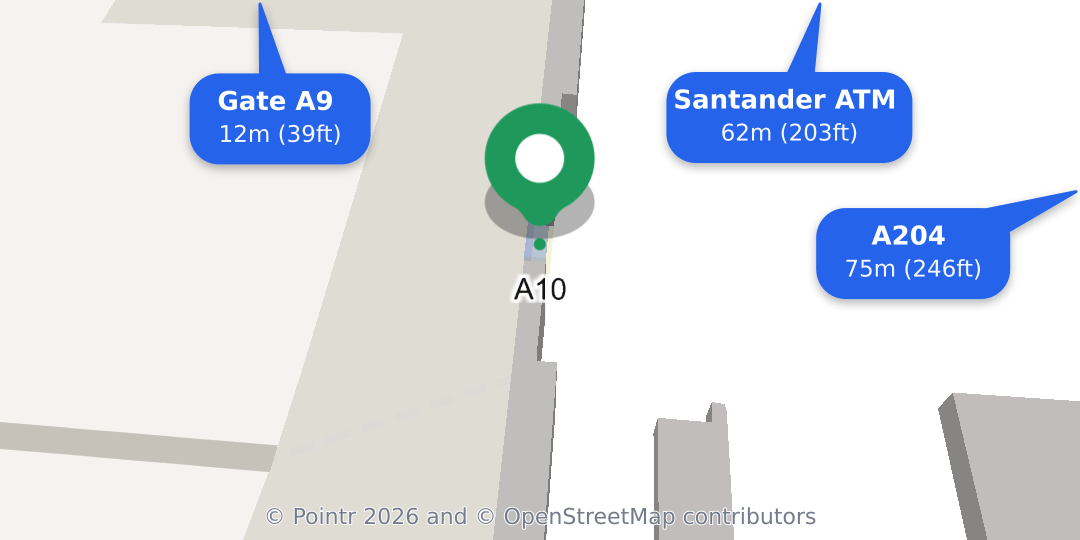
POI Snapshot feature provides a snapshot of the map that shows the POI location.
**Snapshot example:**
{% hint style="info" %}
POI Snapshots are available from v10.3 onwards.
{% endhint %}
{% tabs %}
{% tab title="iOS" %}
The map snapshot is accessible through the `PTRPoi` class:
```swift
guard let site = Pointr.shared.siteManager?.site(withExternalIdentifier: "site_id") else { return }
guard let poi = Pointr.shared.poiManager?.pois(for: site, withIdentifier: "poi_id") else { return }
let url = poi.mapSnapshotUrl
```
The SDK also provides a view named `PTRPoiMapSnapshotView` that takes POI as argument, handles downloading the image and displays it:
```swift
guard let site = Pointr.shared.siteManager?.site(withExternalIdentifier: "site_id") else { return }
guard let poi = Pointr.shared.poiManager?.pois(for: site, withIdentifier: "poi_id") else { return }
let snapshotView = PTRPoiMapSnapshotView(poi: poi)
// In case you want to present the map widget when the snapshot is tapped
snapshotView?.onTap = { [weak self] action in
let mapWidget = PTRMapWidgetViewController(action: action)
self.present(mapWidget, animated: true)
}
view?.addSubview(snapshotView)
```
{% endtab %}
{% tab title="Android" %}
The map snapshot is accessible through the `Poi` class:
```kotlin
val pointr = Pointr.getPointr() ?: return
val site = pointr.siteManager?.getSite("site_id") ?: return
val poi = pointr.poiManager?.getPois(site)?.poiList
?.firstOrNull { it.identifier == "poi_id" } ?: return
val url: String? = poi.mapSnapshotUrl
```
The SDK also provides a view named `PTRPoiMapSnapshotView` that takes a POI as argument, downloads the image and displays it:
**XML usage**
```xml
```
```kotlin
// Assign the POI — triggers image loading immediately if the view
// is already attached to the window, otherwise deferred to onAttachedToWindow.
binding.snapshotContainer.poi = poi
// Optional: react to a tap on the snapshot.
// The lambda receives a PTRMapWidgetAction pre-built for this POI.
binding.snapshotContainer.onTap = { action ->
// e.g. open the full-screen map widget
}
```
**Programmatic usage**
```kotlin
val snapshotView = PTRPoiMapSnapshotView(context)
snapshotView.poi = poi
snapshotView.onTap = { action -> /* ... */ }
parentLayout.addView(snapshotView)
```
**Opening Map Widget On Tap**
```kotlin
binding.snapshotContainer.onTap = { action ->
PTRMapWidgetFragment.newInstance(
parentFragmentManager,
R.id.main_fragment_container,
PTRMapWidgetConfiguration(),
action // focuses the map on the POI
)
}
```
{% endtab %}
{% tab title="Web" %}
The map snapshot is accessible through the `Poi` object. Note that you must call `initData()` to ensure the SDK has loaded the necessary resources before accessing managers:
```javascript
const pointrWeb = new PointrWebSDK.MapWidget(options);
// Initialize data loading
pointrWeb.initData();
pointrWeb.on(pointrWeb.events.dataLoaded, async () => {
const poiManager = pointrWeb.getPoiManager();
const loadedPois = await poiManager.getPoisBySite(siteInternalIdentifier);
const poi = loadedPois?.[poiId];
if (poi) {
// Access the snapshot URL directly
const url = poi.snapshotUrl();
console.log("Snapshot URL:", url);
}
});
```
The SDK also provides a component named `PointrWebSDK.SnapshotImage` that takes a POI as an argument, handles rendering the image, and provides a callback for user interaction:
```javascript
// Define the callback for when the snapshot is clicked
const clickCallback = (poiForCallback) => {
options.highlightPoiIdentifier = poiForCallback.properties.fid;
pointrWeb.initUi();
};
// Create the snapshot instance
const snapshot = new PointrWebSDK.SnapshotImage(poi, clickCallback);
// Append the snapshot element to the DOM
document.body.appendChild(snapshot.toElement());
```
#### Opening Map Widget On Tap
By using the `clickCallback`, you can seamlessly transition from a static snapshot to the interactive Map Widget:
```javascript
const snapshot = new PointrWebSDK.SnapshotImage(poi, (poi) => {
// Highlight the specific POI in the widget configuration
options.highlightPoiIdentifier = poi.properties.fid;
// Initialize the UI to open the map
pointrWeb.initUi();
});
```
{% endtab %}
{% endtabs %}
---
# Agent Instructions
This documentation is published with GitBook. GitBook is the documentation platform designed so that both humans and AI agents can read, navigate, and reason over technical content effectively. Learn more at gitbook.com.
## Querying This Documentation
If you need additional information that is not directly available in this page, you can query the documentation by asking a question.
Perform an HTTP GET request on the following URL with the `ask` and `goal` query parameters:
```
GET https://dev.pointr.tech/features/indoor-maps/map-content-and-poi/poi-snapshot.md?ask=&goal=
```
`ask` is the immediate question: it should be specific, self-contained, and written in natural language.
`goal` is what the user is ultimately trying to achieve, the reason they need the answer. Sharing it helps GitBook give you a better, more relevant answer. A goal is most helpful when it describes the outcome the user wants rather than restating the question. For example, with `ask=how do I create an API token`, a goal like `automate deployments from our CI pipeline` lets GitBook tailor the answer to that use case.
The response will contain a direct answer to the question and relevant excerpts and sources from the documentation.
Use this mechanism when the answer is not explicitly present in the current page, you need clarification or additional context, or you want to retrieve related documentation sections.